
Timezo – Modern Time Slot Booking & Appointment Scheduling Engine
A high-performance WordPress reservation engine for appointment scheduling, multi-purpose facilities, and flexible services with multiple-slot carts, Razorpay gateway, and admin schedule management.
1 Product Overview
Timezo - Modern Time Slot Booking & Appointment Scheduling Engine (Timezo) is a WordPress booking plugin designed for flexible service and appointment reservations. It delivers an intuitive multi-step customer booking flow, multiple-slot cart bookings, Cash and Razorpay payment options, administrative booking management, visual calendar and timeline views, manual booking creation, blocked slot controls, automated email notifications, pending booking expiry cron handling, and customizable frontend appearance.
This documentation is based on the code and templates contained in the supplied timezo.zip. Where a setup step depends on an external service (such as Razorpay), the documentation identifies that dependency rather than assuming configuration that is not contained in the plugin.
| Attribute | Plugin Specification |
|---|---|
| Plugin Name | Timezo - Modern Time Slot Booking & Appointment Scheduling Engine |
| Version | 1.0.0 |
| Author / Developer | Gopal Info |
| License | GPL v2 or later |
| Plugin URI | https://gopalinfo.com/timezo |
| Primary Shortcode | [smart_booking] |
| Alternative Shortcode | [timezo_booking] |
| Thank-you Shortcode | [timezo_thank_you] |
2 Requirements & Setup
The supplied ZIP is a standard WordPress plugin package compatible with modern WordPress installations (PHP 7.4+ or PHP 8.x recommended). Follow these steps to install and activate:
Upload Plugin Package
Log in to your WordPress dashboard. Navigate to Plugins → Add New → Upload Plugin and upload the timezo.zip package.
Install & Activate
Click Install Now, and once the upload finishes, click Activate Plugin.
Automatic Database & Cron Setup
On activation, the plugin automatically creates its booking database tables, schedules the pending-booking hourly expiry cron process, and ensures required booking and thank-you pages exist.
Default Failsafe Service
A default service is automatically created as a failsafe if no service exists, ensuring your booking UI will render immediately.
3 Setup Checklist
Use this interactive checklist to verify every crucial setting before launching your live customer reservations. Your selections are automatically saved in your browser:
Deployment Verification Checklist
0 of 12 completed- Configure payment methods: Cash Payment, Razorpay, or both
- If using Razorpay, choose Test or Live mode and enter the appropriate Key ID and Key Secret
- Configure the Razorpay webhook URL and webhook secret in your Razorpay Dashboard
- Set working start and end times in Booking Settings
- Set the slot duration and booking expiry period (minutes)
- Choose admin date/time formats and frontend date format
- Set the maximum advance booking period if required (e.g. 30 days)
- Create and configure services with name, slot duration, description, and price
- Review email notification settings, sender address, and email templates
- Configure admin default contact details for manual bookings
- Adjust frontend brand colors and gradient accents in Appearance settings
- Place a complete end-to-end test booking before switching Razorpay to Live Mode
5 Dashboard Metrics
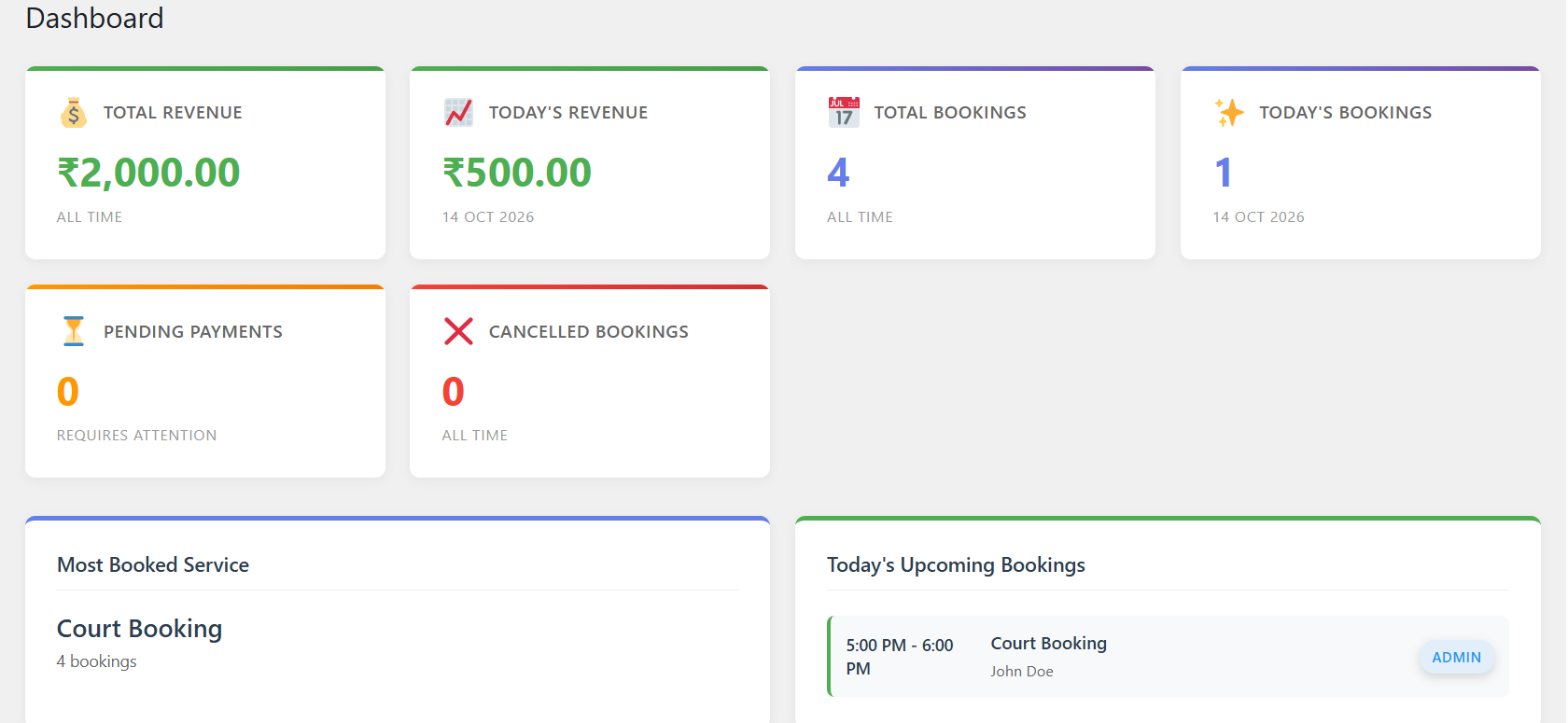
The Dashboard provides an instant operational overview of the booking system. It isolates key financial and activity indicators so venue operators can monitor bookings at a glance.
The metrics highlighted include:
- Total Revenue: All-time aggregate revenue generated through confirmed bookings.
- Today's Revenue: Daily earnings recorded from midnight to the current hour.
- Total Bookings: Overall number of successfully booked reservations.
- Today's Bookings: Total appointments booked or scheduled for today.
- Pending Payments: Bookings awaiting customer online payment completion.
- Cancelled Bookings: Customer and administrative cancellations.
- Most Booked Service: High-demand service offering based on booking volume.
- Today's Upcoming Bookings: Immediate chronological schedule of clients arriving today.
6 Services
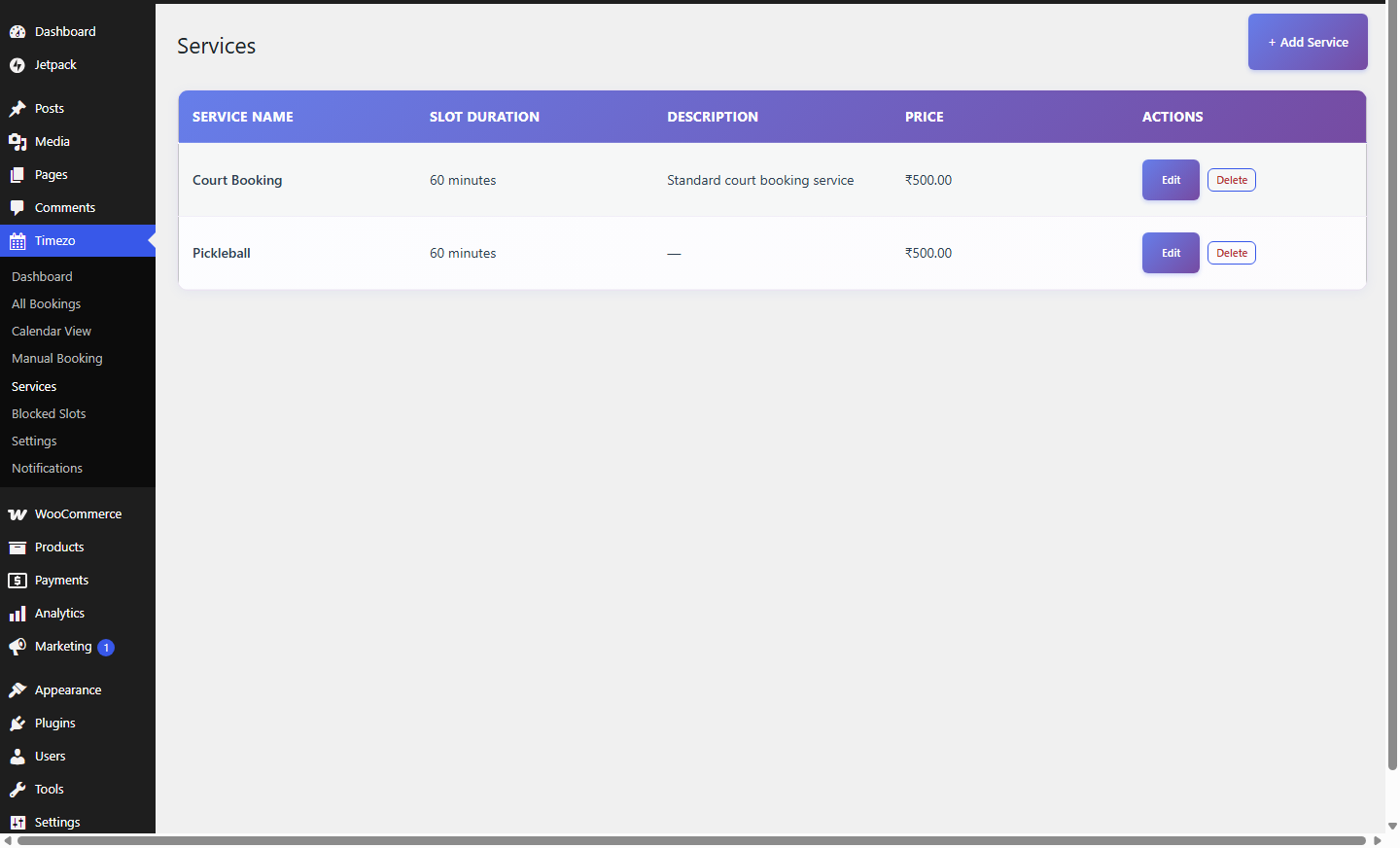
Use Timezo → Services to define and manage bookable services, consultations, or activities.
- Service Name: Required name displayed to customers in the booking form.
- Slot Duration: Time interval per reservation. Available options in the supplied UI are 30 minutes, 60 minutes, or 120 minutes.
- Price Per Slot: Numerical currency amount charged for each selected time interval.
- Description: Optional helpful text or service details shown during customer service selection.
7 Blocked Slots
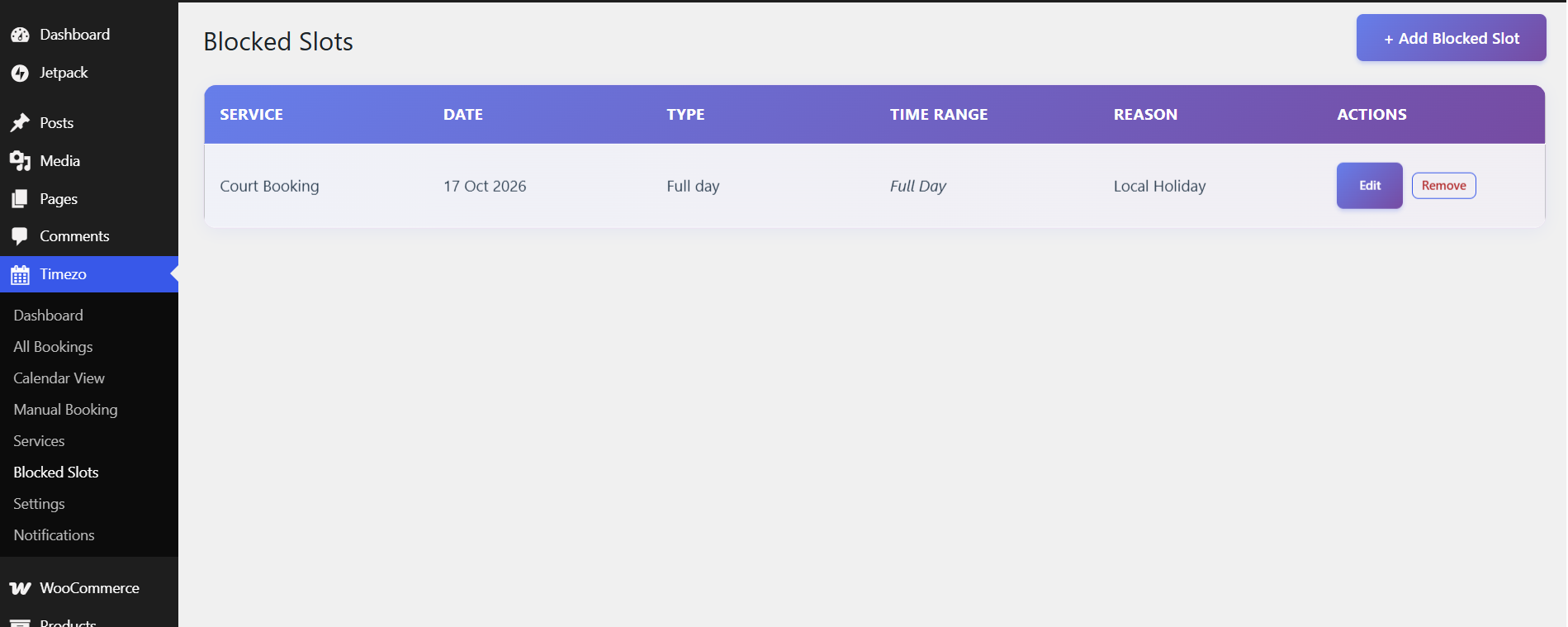
Blocked Slots prevents customers from booking time slots during maintenance routines, scheduled holidays, private events, or administrative holds.
Select Service
Choose the specific service or all services to which this block applies.
Select Block Date
Pick the target calendar day from the datepicker.
Choose Full Day or Partial Range
Select Full Day to block every slot, or Partial (Time Range) and define specific start and end hours.
Enter Reason & Save
Optionally add a note and save. The frontend booking calendar immediately removes these slots.
8 Plugin Settings
Plugin settings are organized into six dedicated tabs under Timezo → Settings:
8.1 Payment Settings
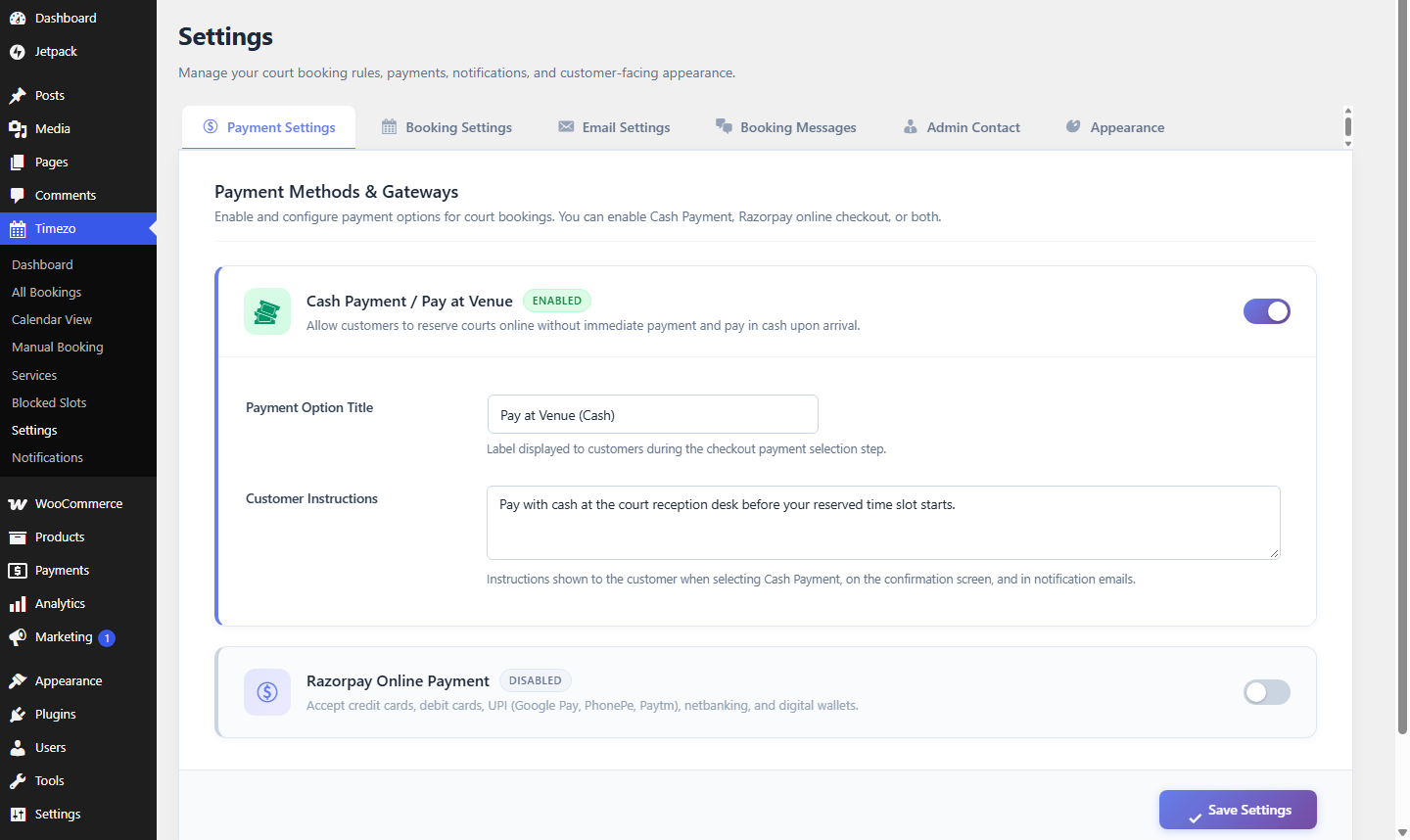
The plugin supports Cash / Pay at Venue and Razorpay online payments with test and live credentials.
https://yourdomain.com/wp-json/timezo/v1/razorpay-webhook8.2 Booking Settings
Configure working start time (e.g. 06:00 AM), working end time (e.g. 11:00 PM), booking expiry minutes, and date/time formats.
8.3 Email & Appearance Settings
Manage email sender addresses and adjust frontend theme primary and accent colors directly.
9 Email Notifications
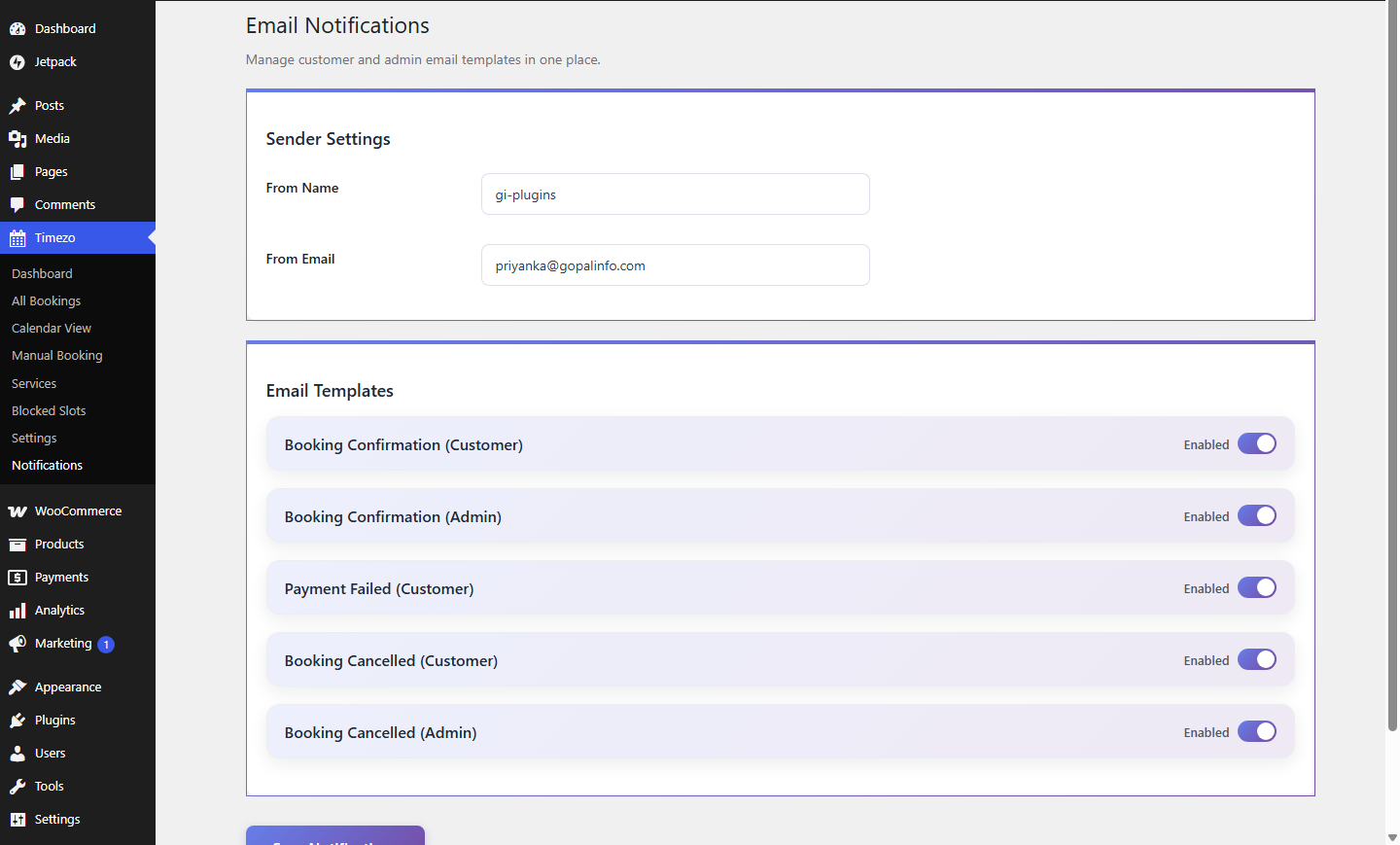
Under Timezo → Notifications, administrators can define global email sender credentials and manage 5 automated email templates with merge variables:
10 Customer Booking Flow
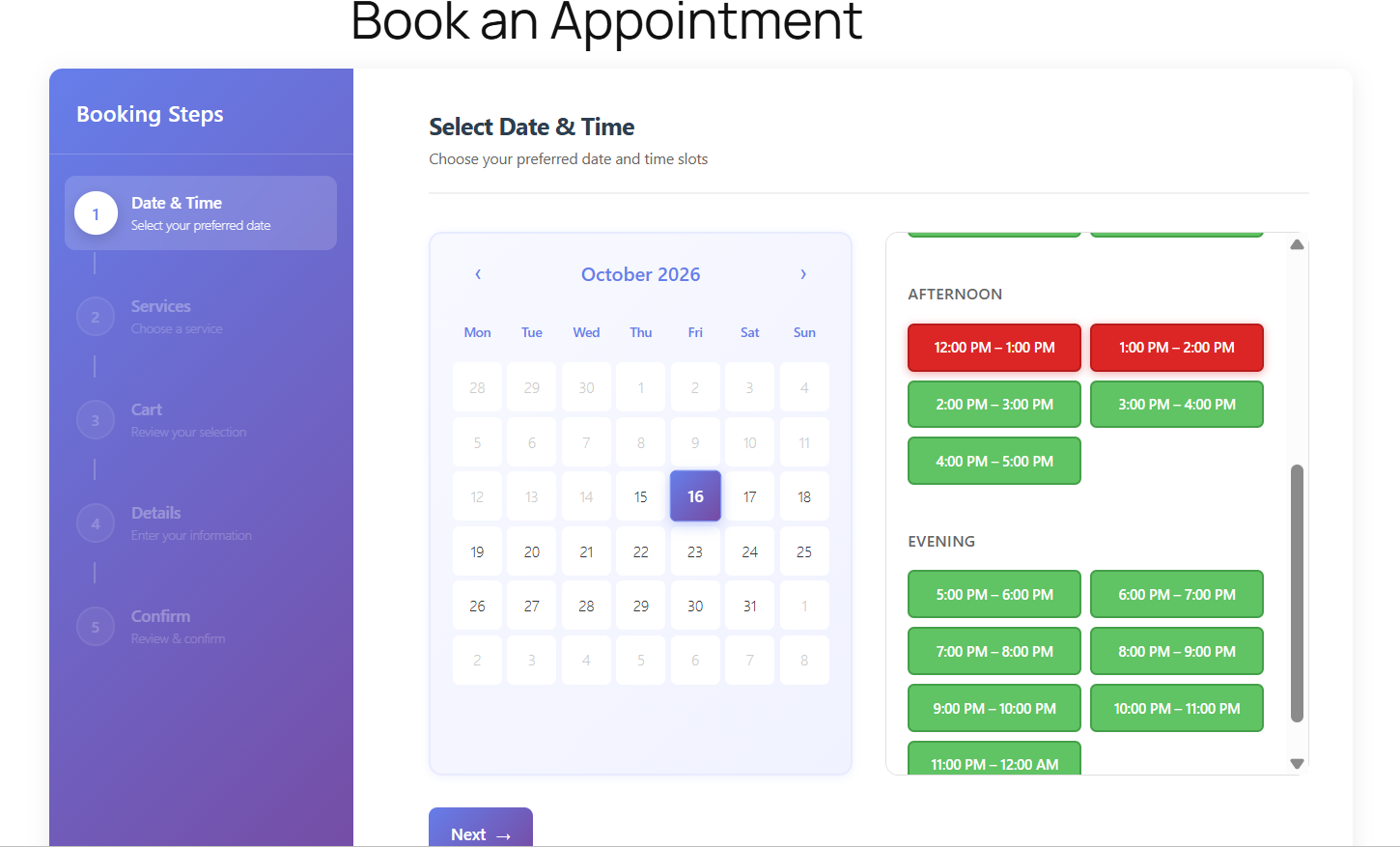
The frontend booking interface is an optimized, multi-step checkout workflow designed for frictionless mobile and desktop conversions:
Step 1: Select Date & Time
Customers select open dates and available slots from the calendar.
Step 2: Select Service
Customers choose the desired service with prices and descriptions.
Step 3: Cart / Summary
Multiple slots are consolidated with an itemized price breakdown.
Step 4: Personal Details
Intake form captures name, email, phone number, and custom notes.
Step 5: Confirmation Review
Review screen presents total fees and booked slot timings.
Step 6: Payment & Thank You
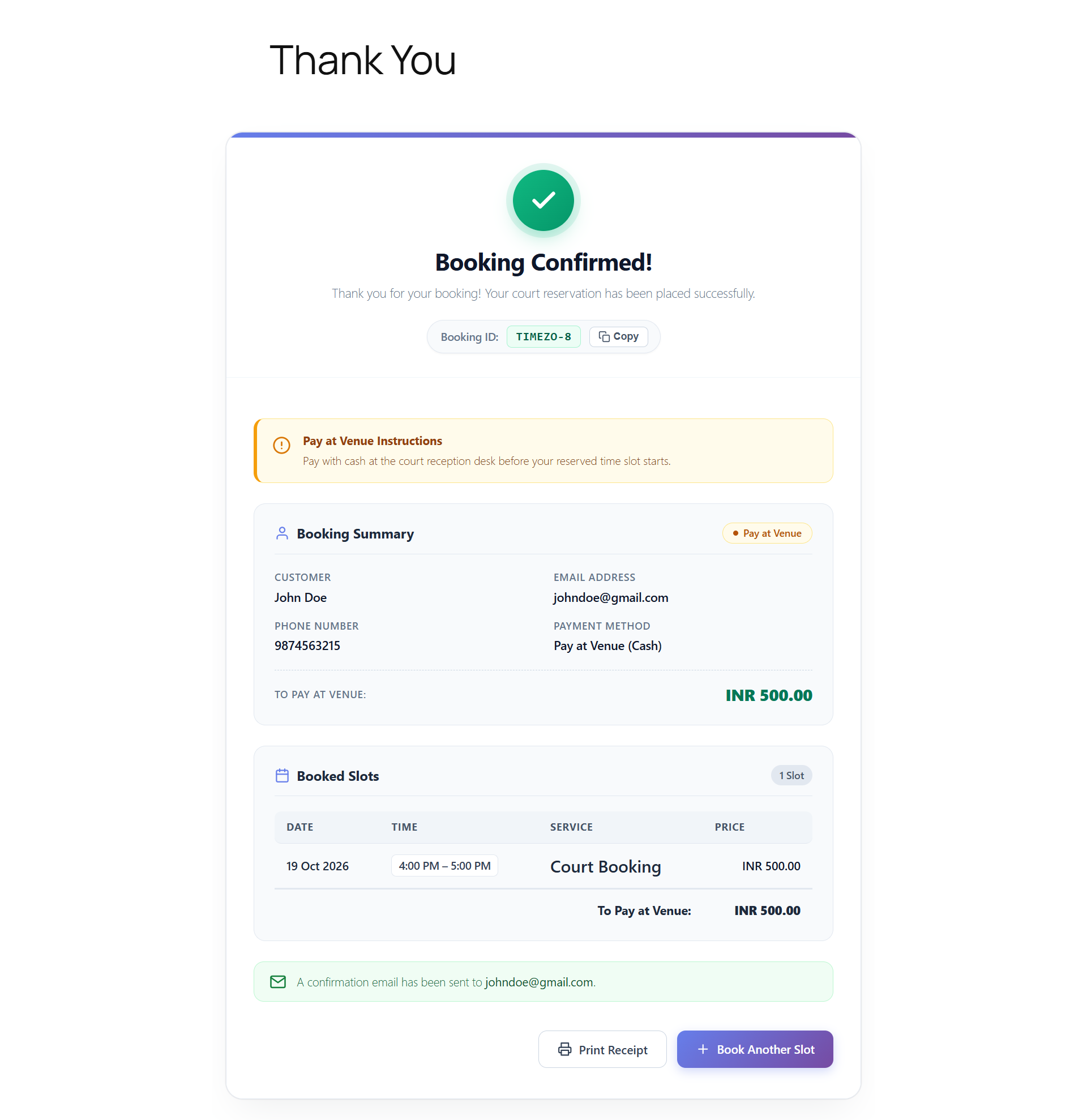
Pay with Cash or Razorpay and receive an instant booking token.
11 Multi-Slot Booking
The booking architecture features native cart support for multiple appointments within a single transaction. Each appointment preserves its independent service, date, start time, end time, and price as an individual booking item.
This allows customers to reserve consecutive hours (e.g. 7 PM – 9 PM) or multiple appointments across services, and complete checkout as a single unified invoice.
12 Cash Payment
When Cash Payment is enabled, customers can select the configured Pay at Venue option. Administrators can customize the title and display clear venue instructions.
13 Razorpay Integration
To configure Razorpay:
- Enable Razorpay in Timezo → Settings → Payment Settings.
- Enter your Razorpay Key ID and Key Secret (Test or Live).
- Configure the webhook URL in your Razorpay Dashboard with the HMAC webhook secret.
- Run a test transaction to verify instant confirmation.
14 Booking Expiry & Cron
When a customer begins checkout, the booking enters pending_payment. An automated hourly WordPress cron process verifies pending bookings against the configured expiry time and immediately releases unconfirmed slots.
15 All Bookings
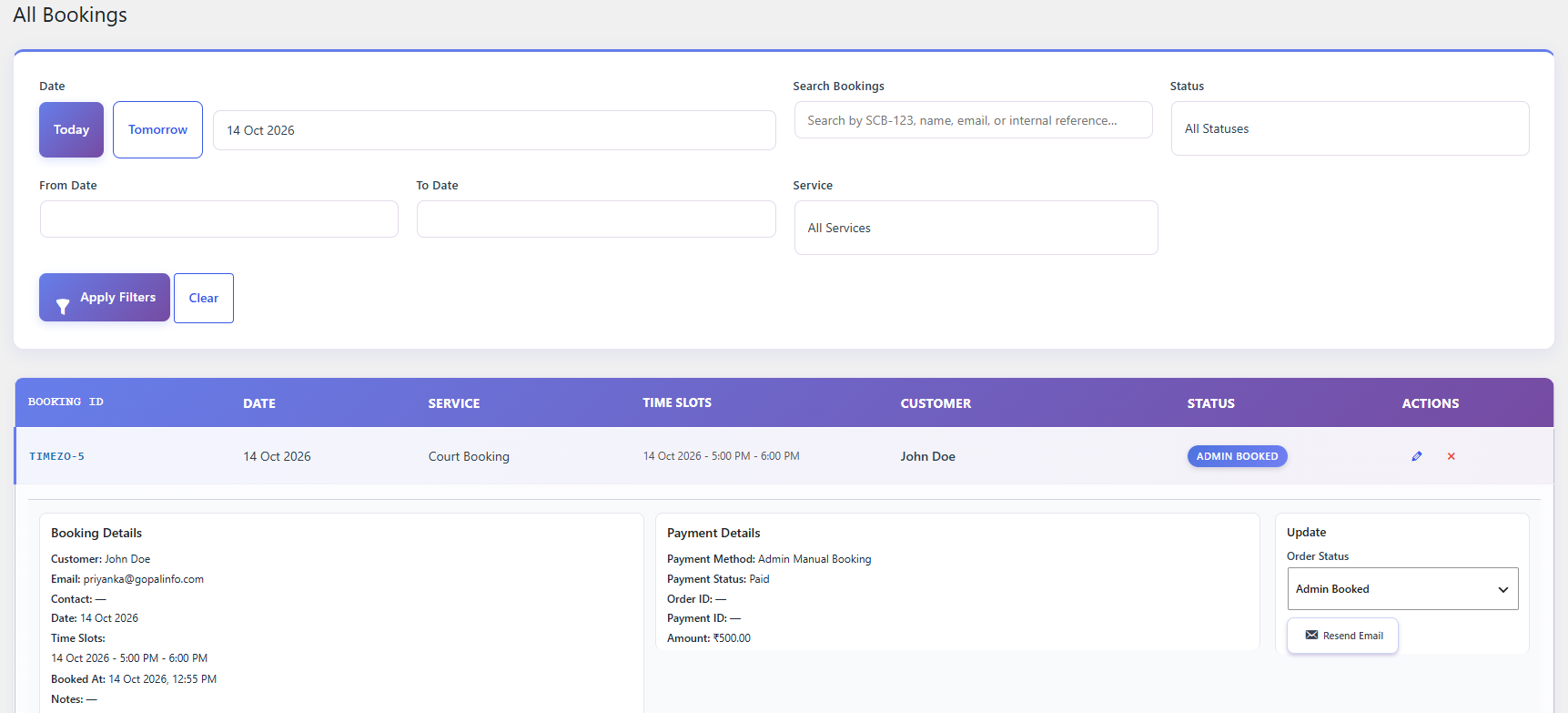
The All Bookings administration view provides full ledger search, filtering, and operational controls across all bookings, payment methods, and appointment dates.
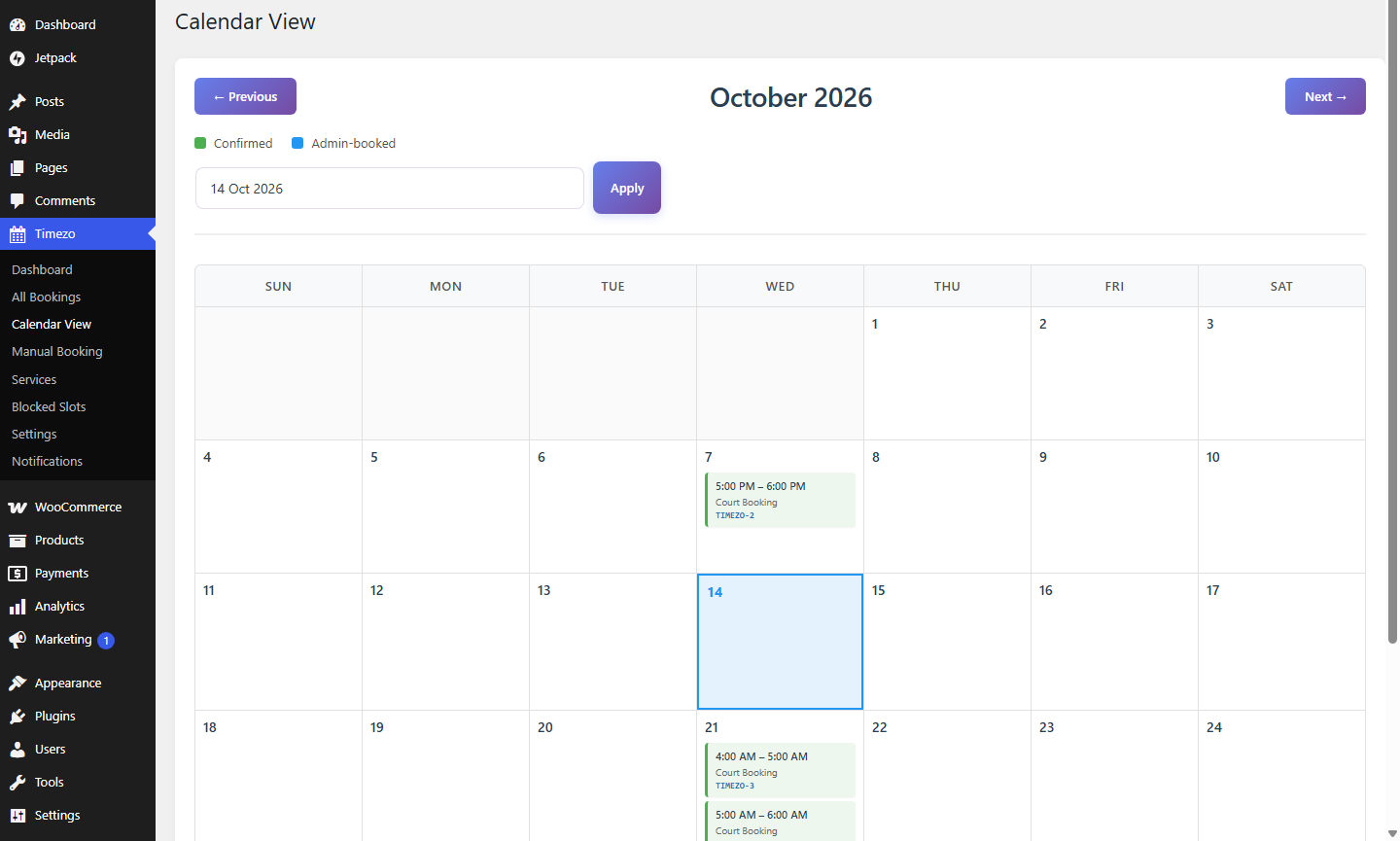
16 Calendar View
Calendar View renders an intuitive visual timeline of appointment schedules with real-time AJAX loading and appointment details popups.
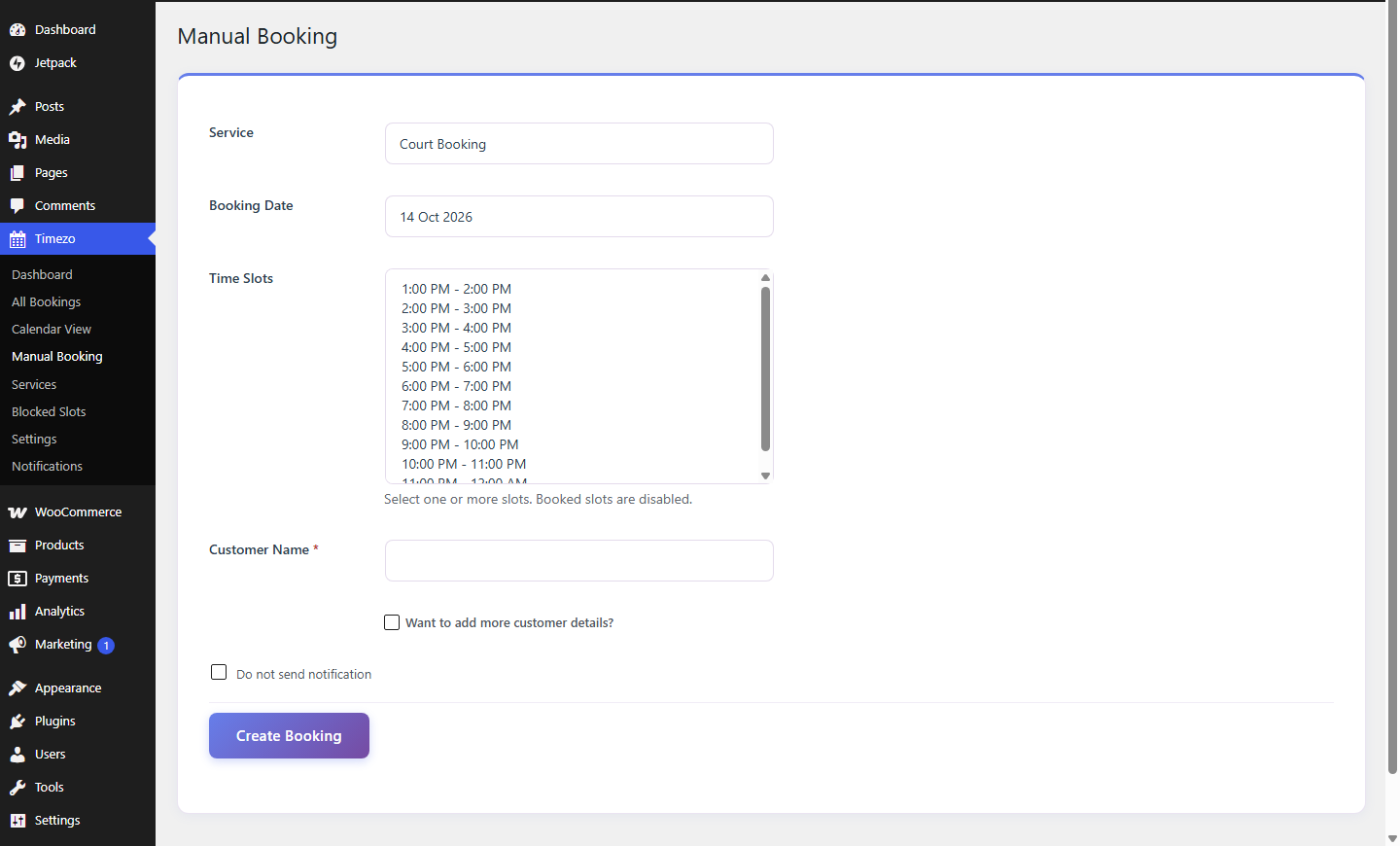
17 Manual Booking
Administrators can reserve slots directly on behalf of walk-in or telephone clients with optional notification bypass.
18 Editing & Cancelling
The plugin supports granular appointment-level management. When a customer reserves multiple slots, administrators can cancel or adjust individual slots without voiding the entire transaction.
19 Refunds
Automated refund functionality is integrated for confirmed bookings with Razorpay Payment IDs. Staff can issue full or partial refunds directly with transaction tracking in the database.
20 Shortcodes
Deploy booking capabilities across any WordPress page or template using these shortcodes:
Primary customer booking interface. Renders date, service selector, cart, and payment steps.
Alternative shortcode alias providing identical customer booking functionality.
Displays final booking confirmation and receipt voucher using reference tokens.
21 Required Pages
Upon activation, the plugin ensures that two core WordPress pages exist:
- Booking Page: Embeds
[smart_booking]where customers browse services and submit appointments. - Thank-You Page: Embeds
[timezo_thank_you]where receipt summaries are shown.
22 Email Variables
The built-in template editor supports dynamic merge tags. Click any chip below to copy it directly to your clipboard:
23 Security & Operations
WordPress Nonces & Capabilities
All administrative forms and AJAX endpoints verify WordPress nonces and check user capabilities.
Cryptographic Signatures
Razorpay verifications authenticate incoming webhook payloads via HMAC SHA256.
Credential Confidentiality
Never expose Razorpay Key Secret or Webhook Secret in frontend files or client scripts.
Staging Verification
Always execute full end-to-end reservations in Razorpay Test Mode before deploying to production.
24 Troubleshooting
25 Screenshot Checklist
When preparing final client-facing collateral with actual production screenshots, use this checklist to capture every screen:
| Section | Required UI Screenshot | Status |
|---|---|---|
| Dashboard | Timezo Dashboard overview & metrics | ✓ Integrated |
| Services | Services list & pricing configuration | ✓ Integrated |
| Settings | Payment, Booking, and Email settings | ✓ Integrated |
| Frontend Flow | Steps 1 through 7 complete customer journey | ✓ Integrated |